
Settings
Settings holds how fast your campaigns send, which push notifications you receive and which AI agents are connected to your account. Its last card deletes the account. Changes save automatically. Open it from the Workspace group of the sidebar, or from Google Sheets via Extensions → Mail Merge for Gmail → ⚙️ Settings.
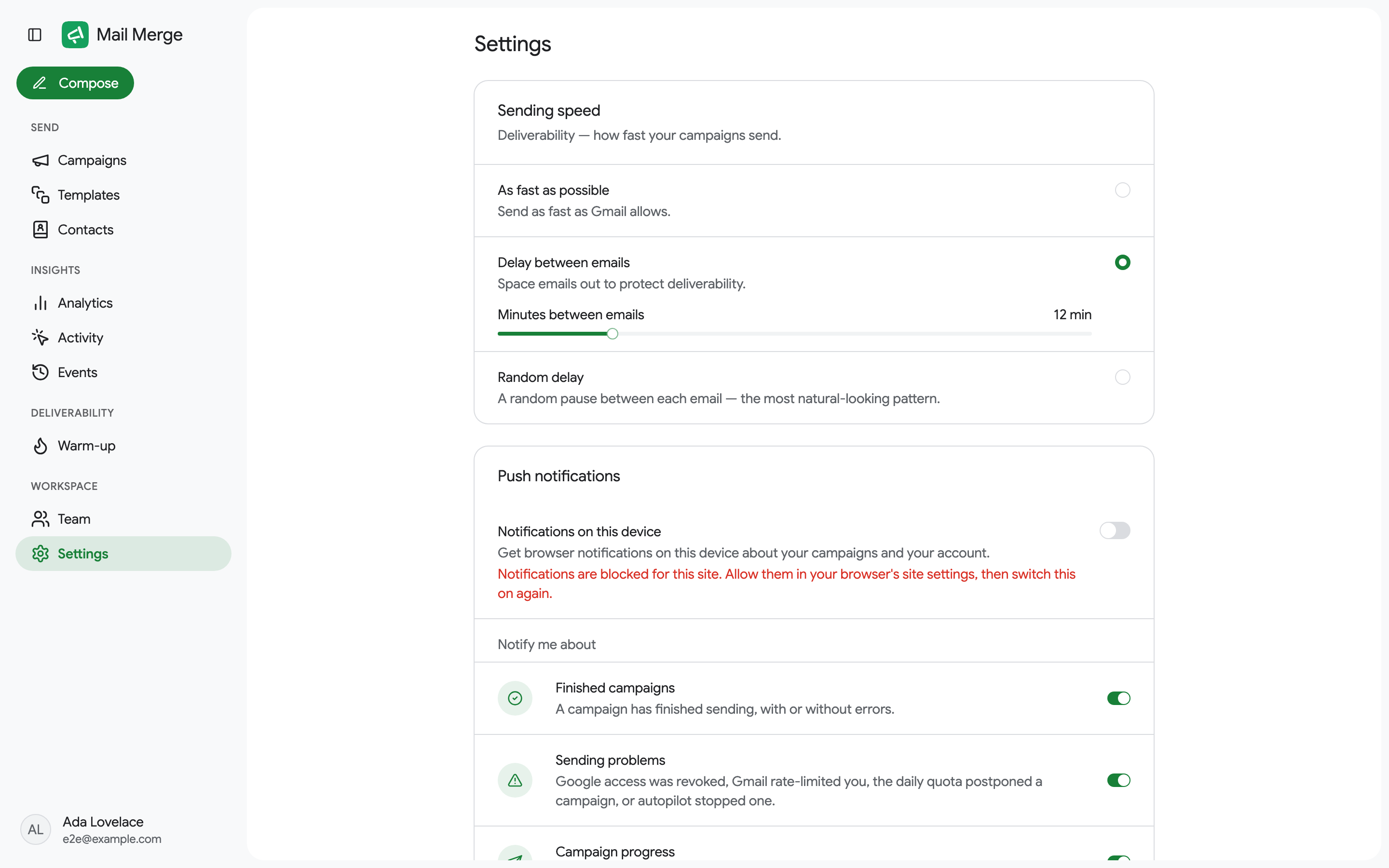
Sending speed
Section titled “Sending speed”The sending speed applies to every campaign you start afterwards (Autopilot campaigns have their own setting in the Autopilot dialog).
| Mode | What it does |
|---|---|
| As fast as possible | Sends as fast as Gmail allows. |
| Delay between emails | Waits a fixed number of minutes between emails, from 1 to 60. |
| Random delay | Waits a random time between each email, within a range you set from 0 to 60 minutes. This is the most natural-looking pattern. |
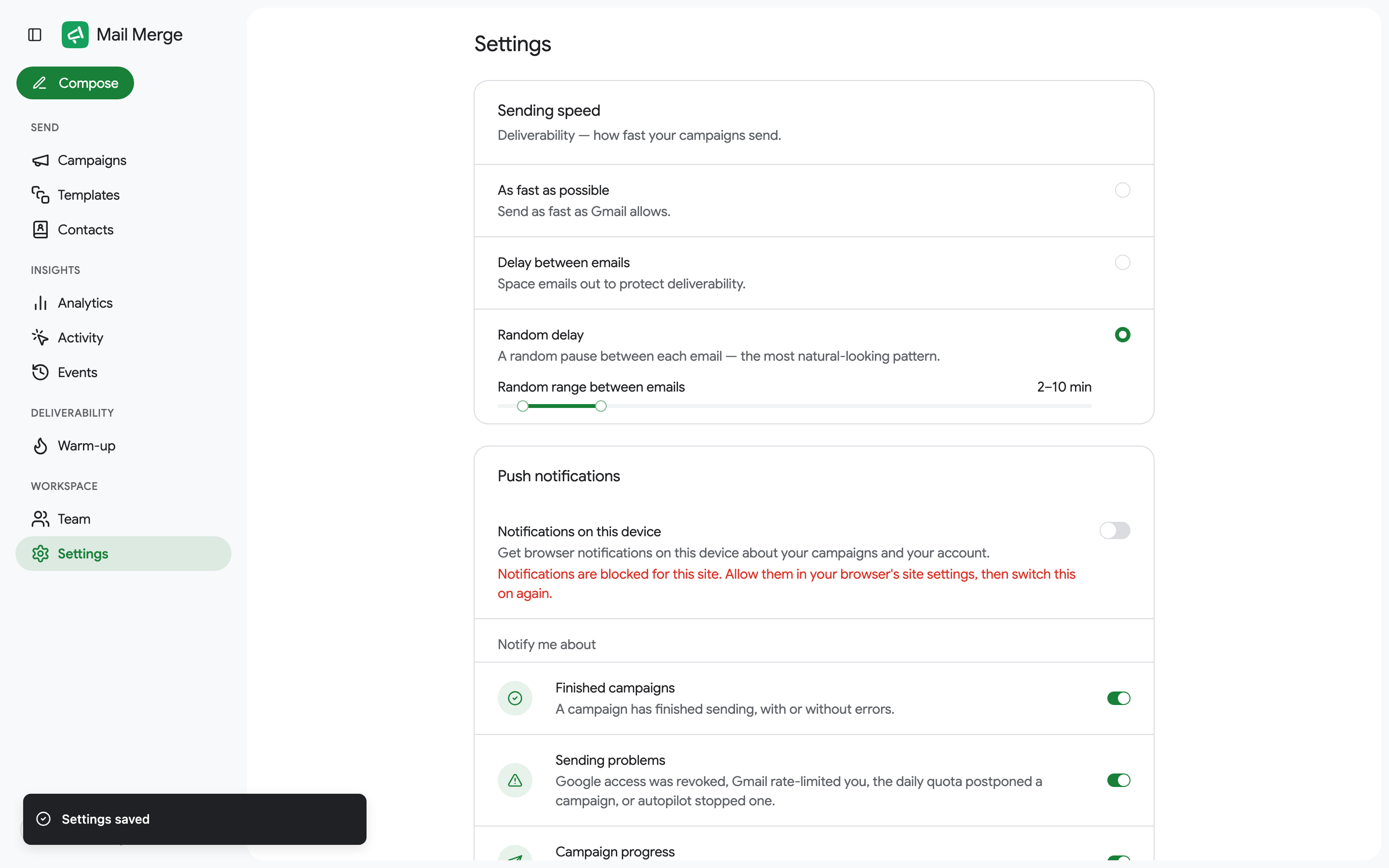
Spacing emails out draws less attention from mailbox providers and keeps your account in good standing. Keep in mind that a large campaign with a long delay takes a long time: 300 emails at 10 minutes apart take 50 hours. See Email throttling.
Push notifications
Section titled “Push notifications”Notifications on this device turns on browser notifications for this browser. The first time, the browser asks for permission. If it says notifications are blocked, allow them for merge.email in the browser’s site settings and switch it on again.
Once on, choose what to be notified about:
| Category | When you get a notification |
|---|---|
| Finished campaigns | A campaign has finished sending, with or without errors. |
| Sending problems | Google access was revoked, Gmail rate-limited you, the daily quota postponed a campaign, or Autopilot stopped one. |
| Campaign progress | A scheduled campaign started, or Autopilot sent today’s emails. |
| Paused, resumed or stopped | You paused, resumed or stopped a campaign, for example from another device. Off by default. |
| Billing | A subscription payment failed. |
| Warm-up | Warm-up paused itself, or your mailbox reputation dropped. |
Notifications are sent once per campaign or incident, never per email.
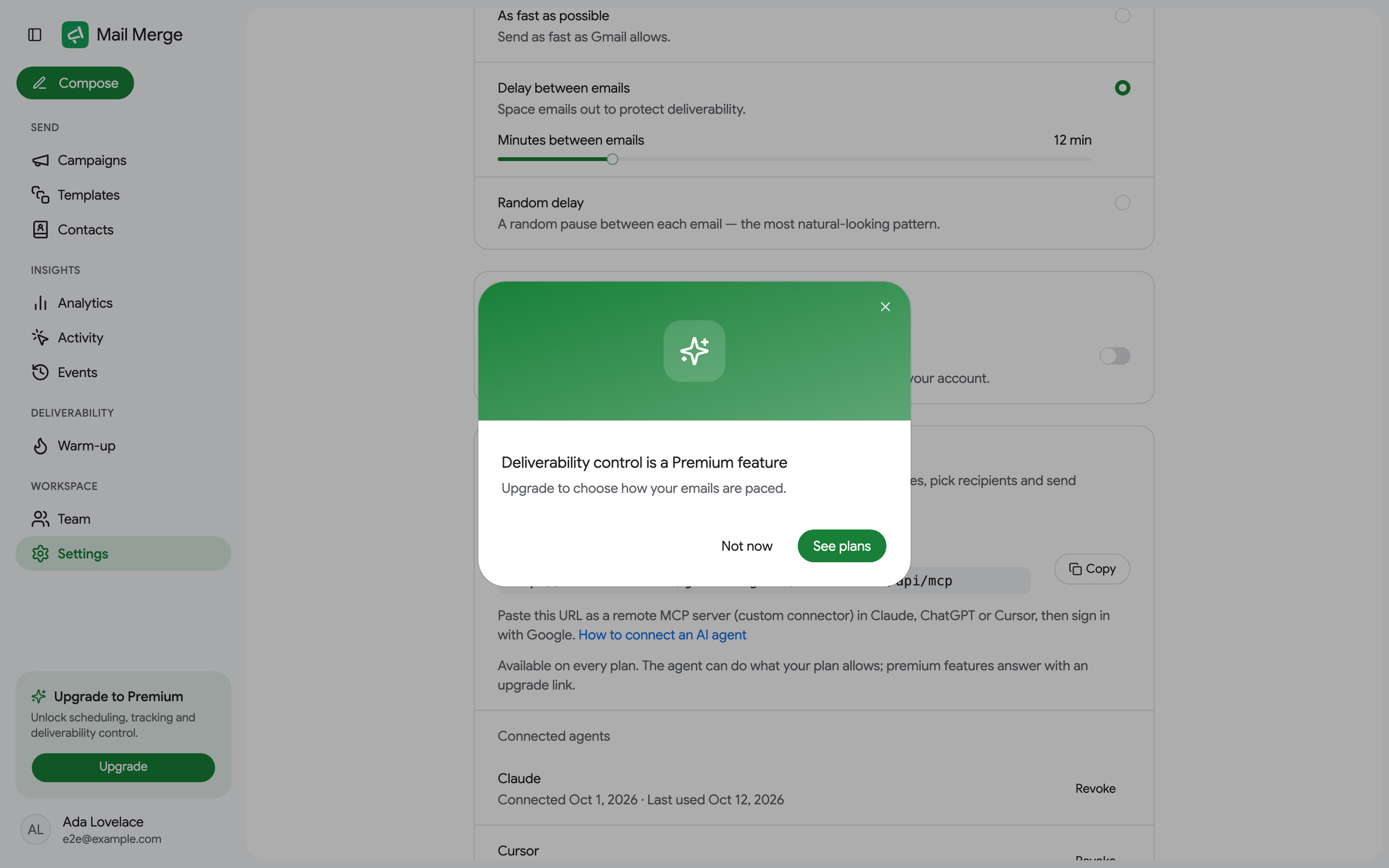
AI agents
Section titled “AI agents”The AI agents card lists every AI assistant (Claude, ChatGPT, Cursor or another MCP client) connected to your account through the Mail Merge MCP server, with the date it connected and when it was last used. Revoke cuts an agent’s access immediately. How to connect one, what it can do and the safety checks around sending are on Use Mail Merge with AI agents.
Delete your account
Section titled “Delete your account”Delete account, the last card on the page, removes your Mail Merge account for good. It is available in the web app (merge.email/app/settings) and in the Android app, not inside the Google Sheets add-on.
- Open Settings and scroll to Delete account.
- Click Delete account, type your account’s email address to confirm and click Delete account again.
What happens, immediately:
- Your campaigns, templates, contacts and contact lists, tracking data, API keys, webhooks, connected AI agents and settings are erased. Campaigns that are still sending or scheduled stop.
- A paid subscription is cancelled at once, without a refund for the time left. If you want the paid period to run out first, cancel the subscription instead and delete the account later. Team members on your seats lose the plan with it.
- The access you gave Mail Merge to your Google account is withdrawn. Emails already sent stay in your Gmail, and your Google Sheets are not touched.
- You are signed out.
What is kept: the invoices and payment records held by Stripe, our payment processor, which the law requires us to keep. An unused contact balance is lost with the account. Signing in again later with the same Google account creates a new, empty account on the Free plan. To remove the add-on from Google Sheets as well, uninstall it from the Google Workspace Marketplace.
Cannot sign in to delete the account? Write to contact@merge.email from the account’s own address.
Language and theme are not on this screen: they live in the account menu.