
Sender name, reply-to and send-as addresses
The From address
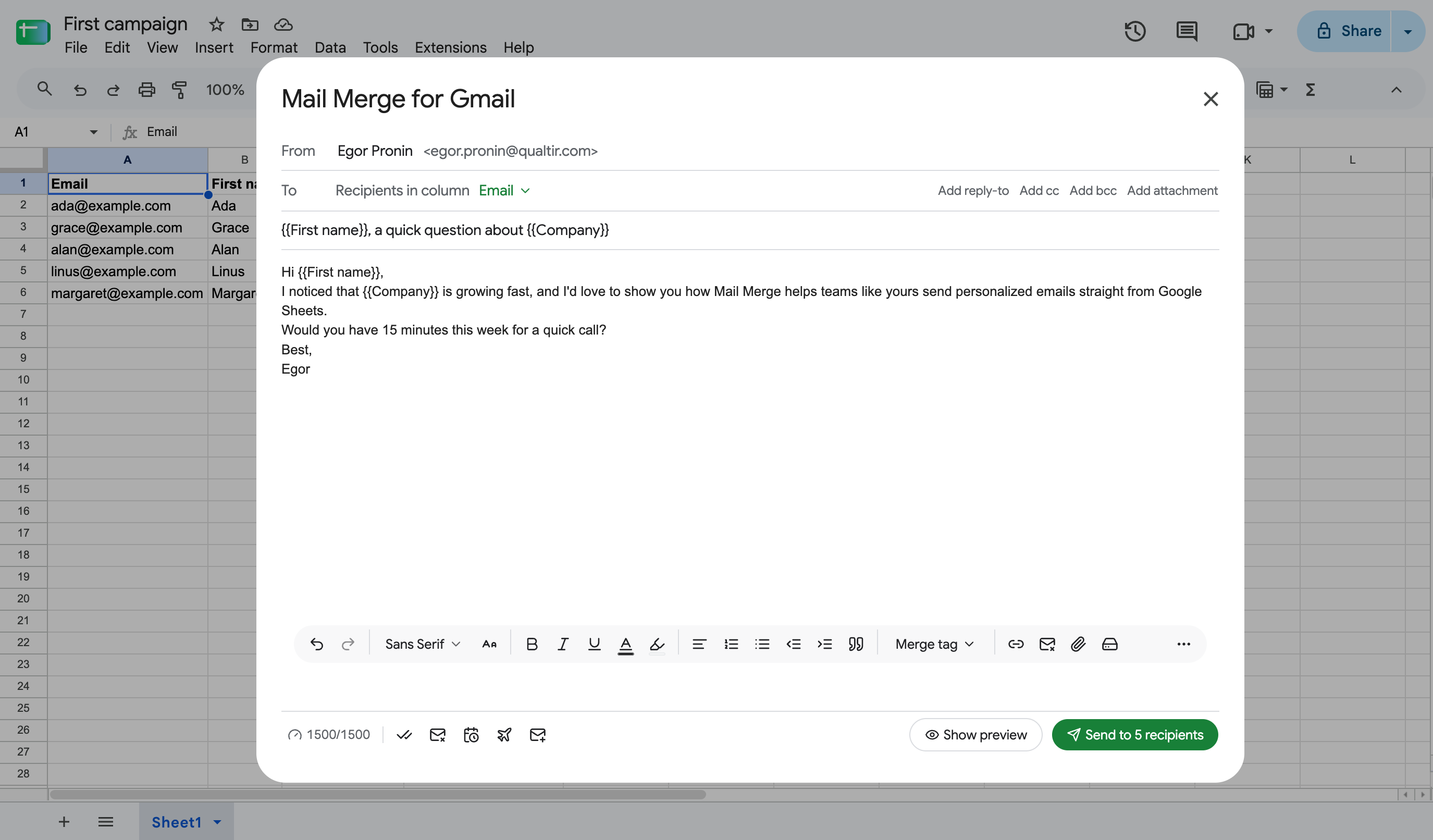
Section titled “The From address”By default every campaign is sent from the Google account you are signed in with: the account that opened Mail Merge in Google Sheets, or the one shown at the bottom of the web app’s sidebar. The From row of the campaign builder shows it next to the sender name.
On a paid plan you can also send from another address of yours: a Gmail alias, a shared mailbox, a team address such as sales@yourcompany.com, or an address from another provider. Mail Merge calls these send-as addresses. Set them up once under Settings → Send as, and the From row of every new campaign offers them in a dropdown.
To send from a completely different Google account, sign in with that account instead. It needs its own Mail Merge installation and, for paid features, its own subscription or a team seat. Switching accounts in the web app is instant through Add another account in the account menu.
Send-as addresses
Section titled “Send-as addresses”What works
Section titled “What works”Mail Merge sends through the Gmail API of the signed-in account, and Gmail only lets a message carry a From address that the account itself is allowed to use. That is the list under Gmail → Settings → Accounts and Import → “Send mail as”: the aliases of your Google Workspace account, group addresses you are allowed to send as, and external addresses you have connected there (Gmail asks you to confirm those with its own verification email).
Any address in that list can become a send-as address in Mail Merge. An address that is not in that list cannot: Gmail silently replaces it with your primary address, which is exactly what the verification step below catches.
Adding and verifying an address
Section titled “Adding and verifying an address”- Open Settings → Send as in the web app and click Add an address.
- Enter the address and, optionally, the display name recipients should see.
- Click Add and verify. Mail Merge sends a short email from that address to your own inbox, then reads the delivered message back. If Gmail kept your address as the sender, the address is marked Verified and is ready to use; you can delete the email.
If the address comes back Not verified, Gmail rewrote the sender to your primary address. Add the address under Gmail’s “Send mail as” first (and complete Gmail’s own confirmation for an external address), then click Verify next to it in Mail Merge. You get ten verification attempts a day.
Using it in a campaign
Section titled “Using it in a campaign”In the campaign builder, the address in the From row becomes a dropdown as soon as you have at least one verified send-as address. Pick the address to send from; the sender name switches to the display name you saved for it, and you can still edit it. The test email and the Review step show the address you picked, and the campaign’s history records it.
Only a verified address can be chosen. Replies to a campaign land in the mailbox of the address you sent from, as they would for any email sent from that alias in Gmail. Reply detection for follow-up sequences keeps working: Mail Merge knows your send-as addresses are yours and never counts them as a recipient’s reply.
Removing an address
Section titled “Removing an address”Remove next to an address takes it out of the list. Campaigns that are already sending keep the address they started with. You can add the address again later; it needs to be verified again.
Add-on and AI agents
Section titled “Add-on and AI agents”Send-as addresses are managed in the web app. In the Google Sheets add-on, campaigns still go out from the signed-in account. An AI agent connected to Mail Merge can send from a verified address by passing it as fromAddress to send_campaign or send_test_email.
Sender name
Section titled “Sender name”The name recipients see next to the address comes from your Google profile, or from the display name saved with a send-as address. Change it per campaign in the From field of the builder: it is a free text field, and the value is remembered for the next campaign. Recipients still see the real address next to it.
Reply-to
Section titled “Reply-to”Click Add reply-to in the To row and enter the address replies should go to. It applies to every email of the campaign and works with any From address. Reply detection for follow-up sequences still works, since it reads the threads of the sending account.
Google Workspace
Section titled “Google Workspace”A Workspace account sends from its Workspace address, with the higher daily limit that comes with it. Aliases of a Workspace account are usually already allowed under “Send mail as”; group addresses need the group’s “Who can post” and “Send as” permissions set by the Workspace administrator. The subscription stays tied to the address that paid; to move it to a new Workspace address, see Account & Billing.