
Contacts
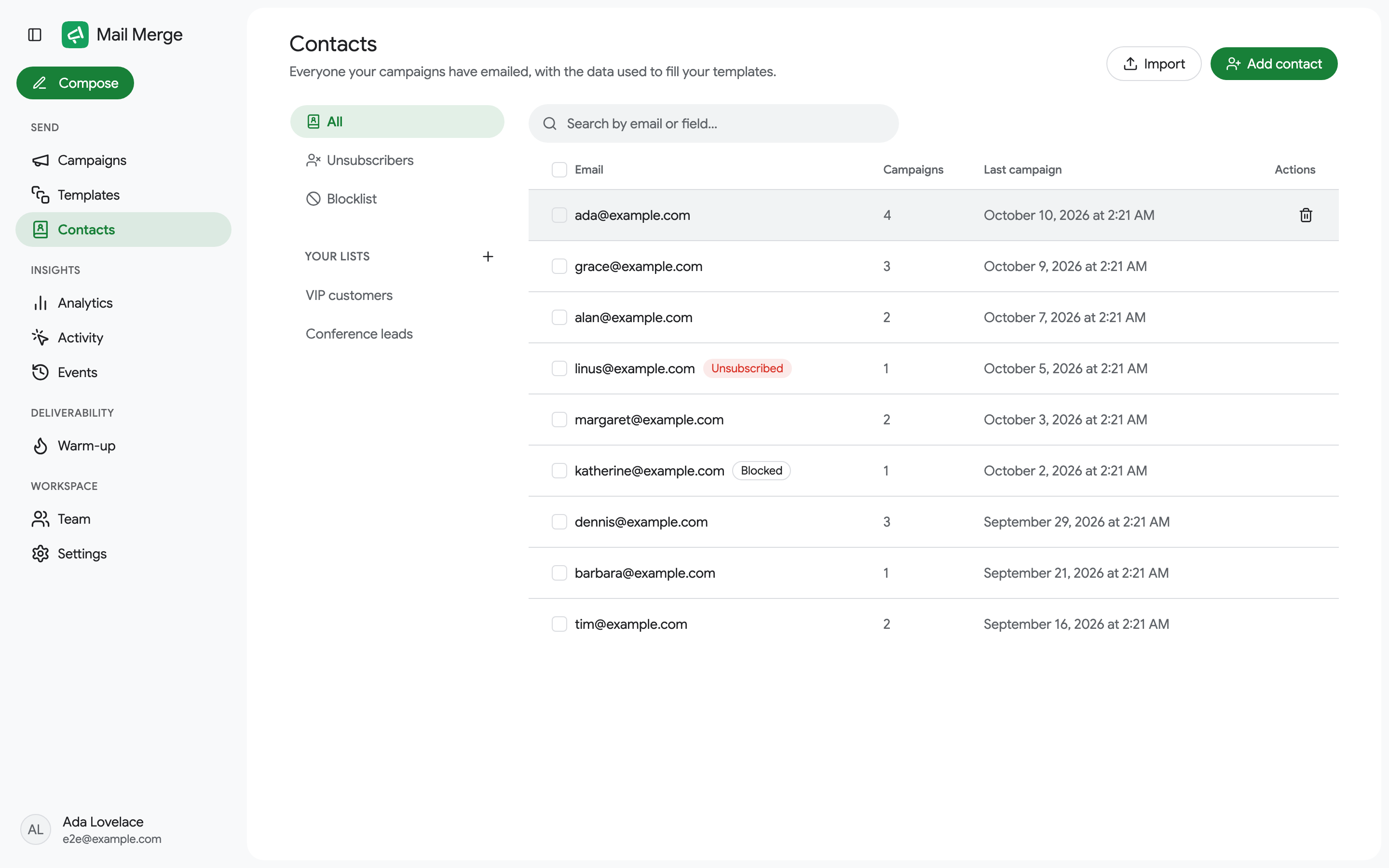
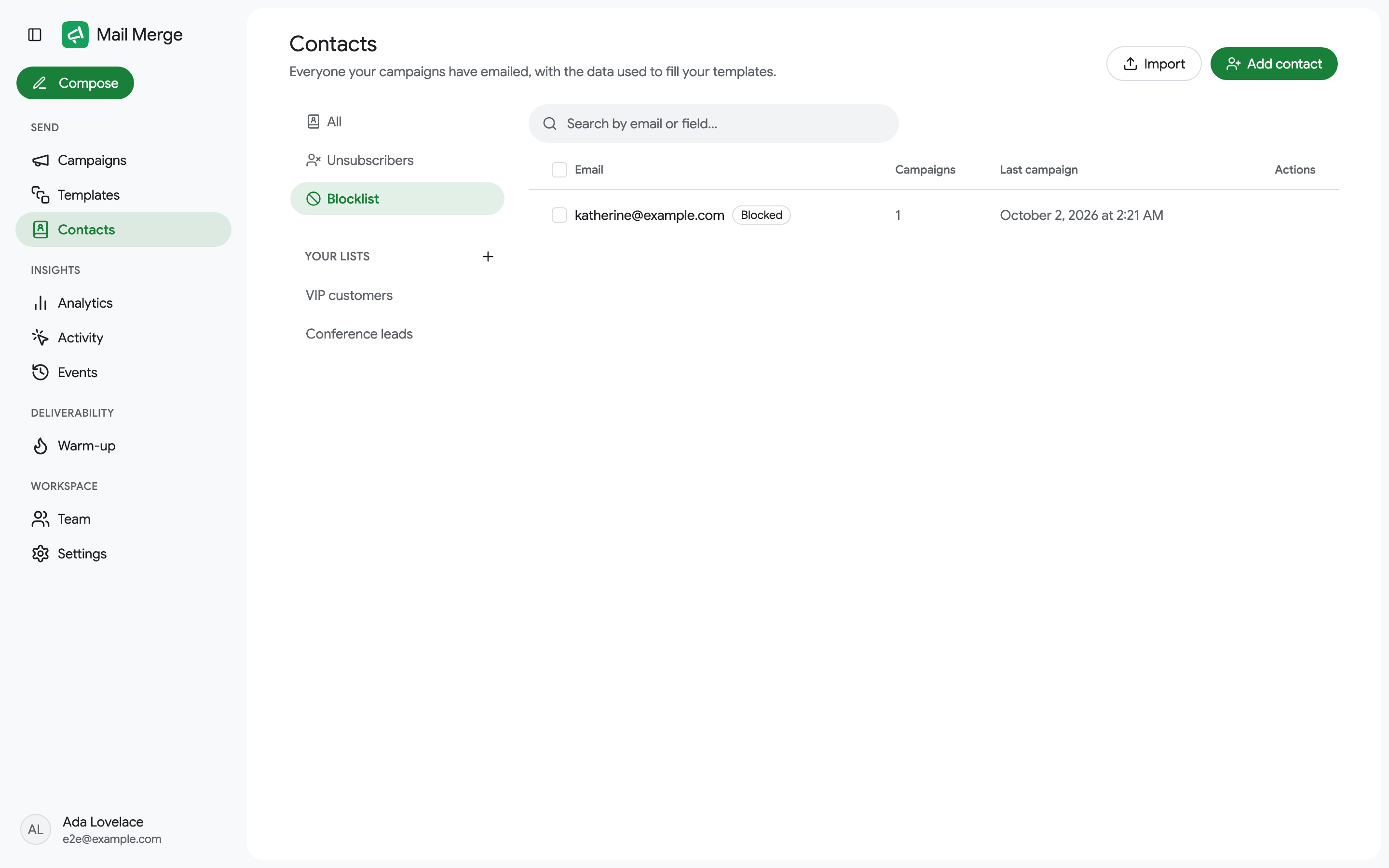
The Contacts screen is your contact book. Every recipient of every campaign is saved here automatically, together with the data that filled the merge tags, so you can reuse them in the campaign builder without going back to a spreadsheet.
The contact list
Section titled “The contact list”| Column | What it shows |
|---|---|
| The address, with an Unsubscribed or Blocked badge when it applies. | |
| Campaigns | How many of your campaigns have included this contact. |
| Last campaign | When this contact was last emailed. |
The search box matches the email address and every saved field value. Clicking a row opens the contact; hovering it reveals a Delete contact button. The list loads more rows as you scroll.
The sidebar on the left filters the book:
- All: everyone.
- Unsubscribers: contacts who clicked an unsubscribe link. New campaigns skip them automatically.
- Blocklist: contacts you blocked yourself. New campaigns skip them too.
- Your lists: the contact lists you created.
Contact details
Section titled “Contact details”Click a contact to see when it was last emailed, its merge fields (the column values saved from your sheets and files) and the campaigns it was part of, each a link to the campaign.
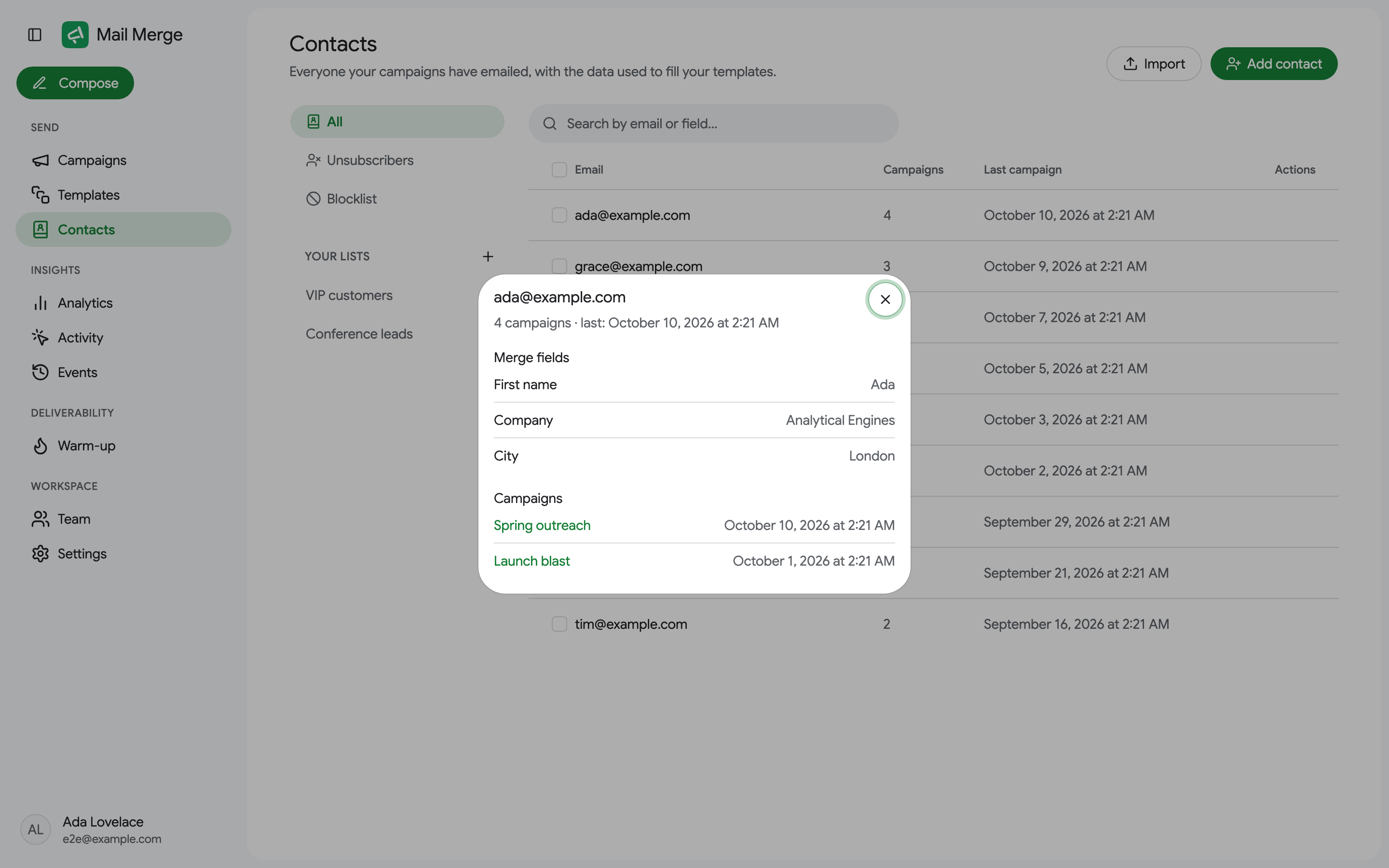
An unsubscribed or blocked contact says so at the top, with the date.
Adding and importing contacts
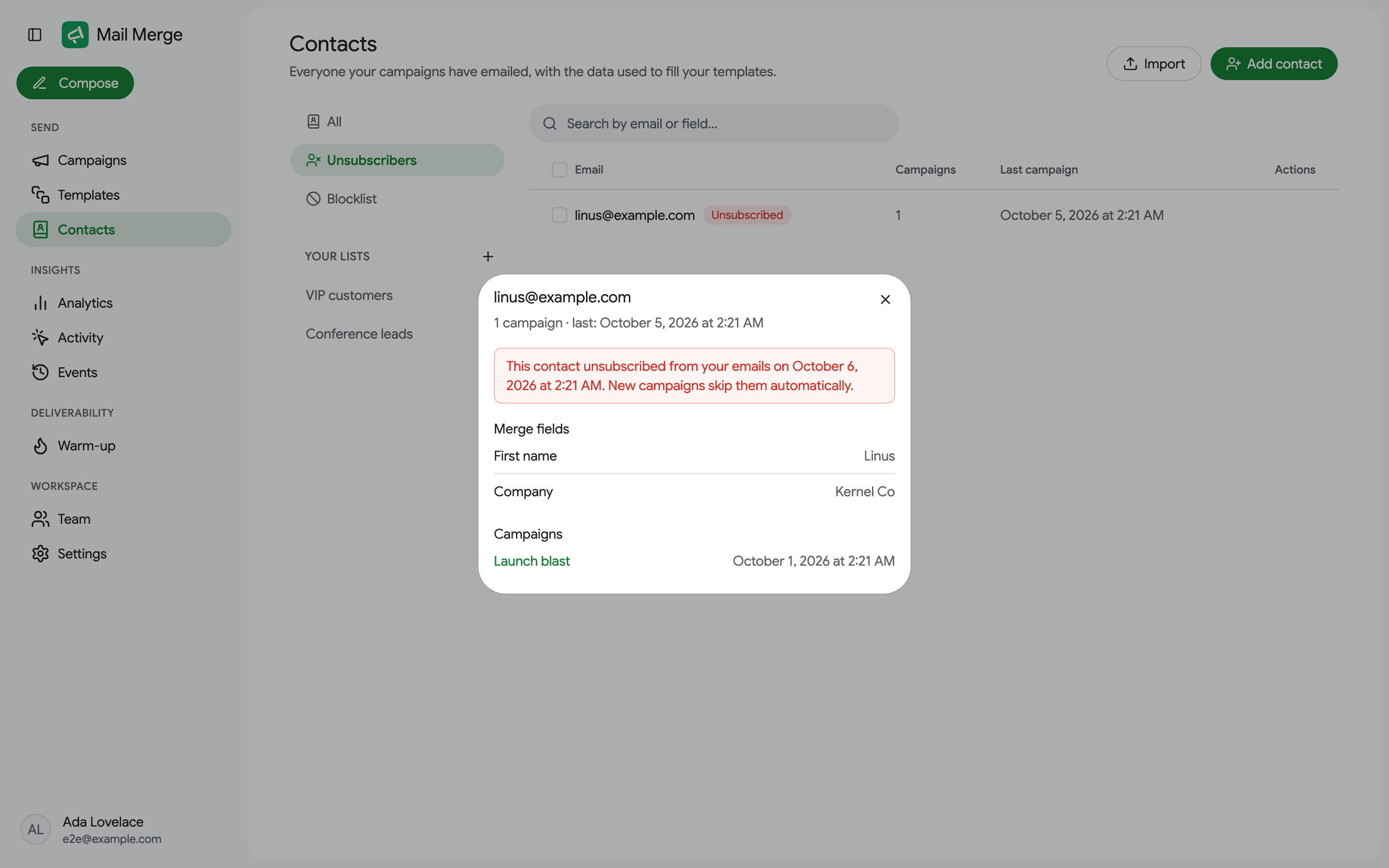
Section titled “Adding and importing contacts”Contacts are created automatically when you send, but you can also add them by hand:
- Add contact creates one contact with an email address and any merge fields you want.
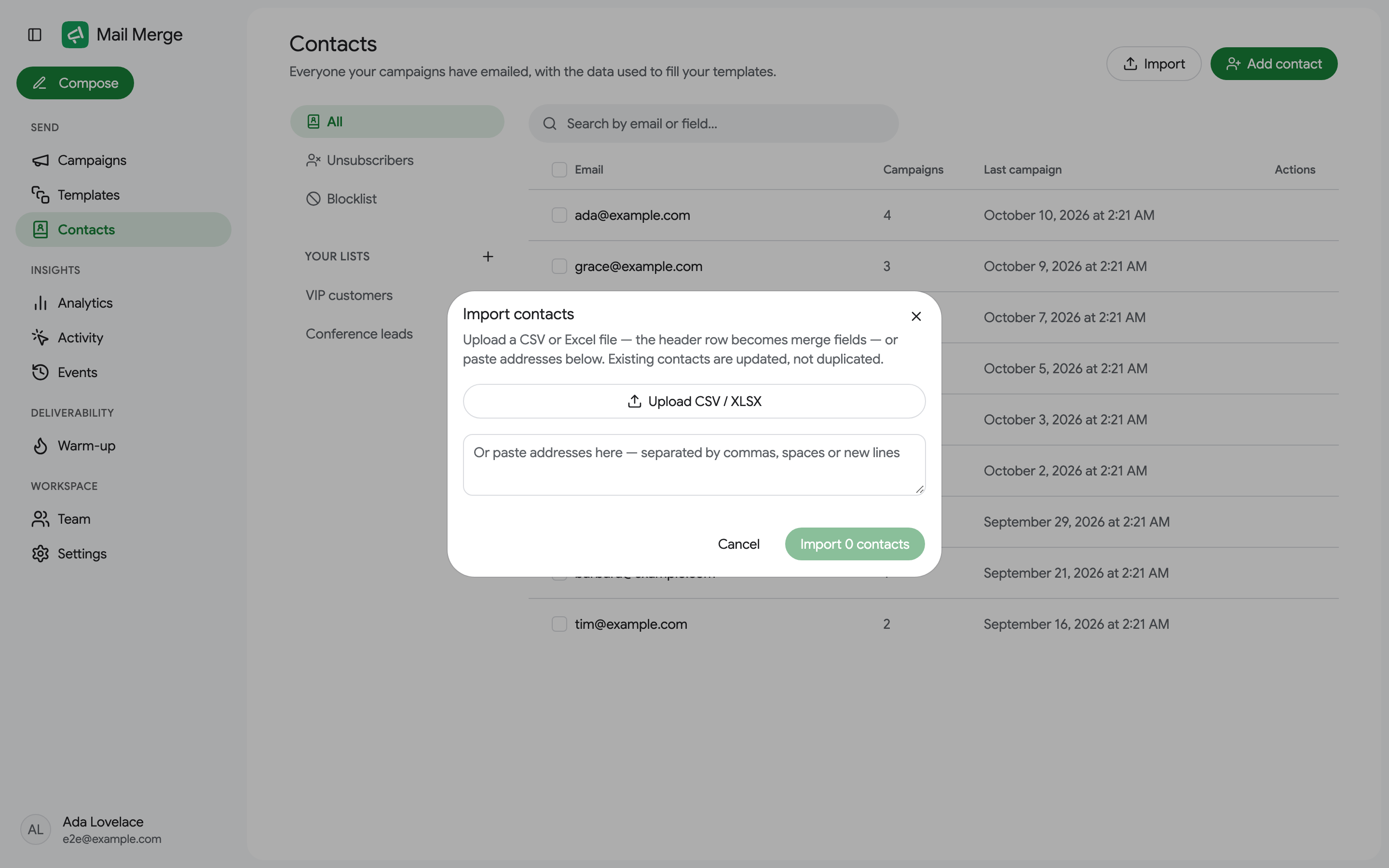
- Import takes a CSV or XLSX file, or a pasted list of addresses separated by commas, spaces or new lines.
Selecting contacts and bulk actions
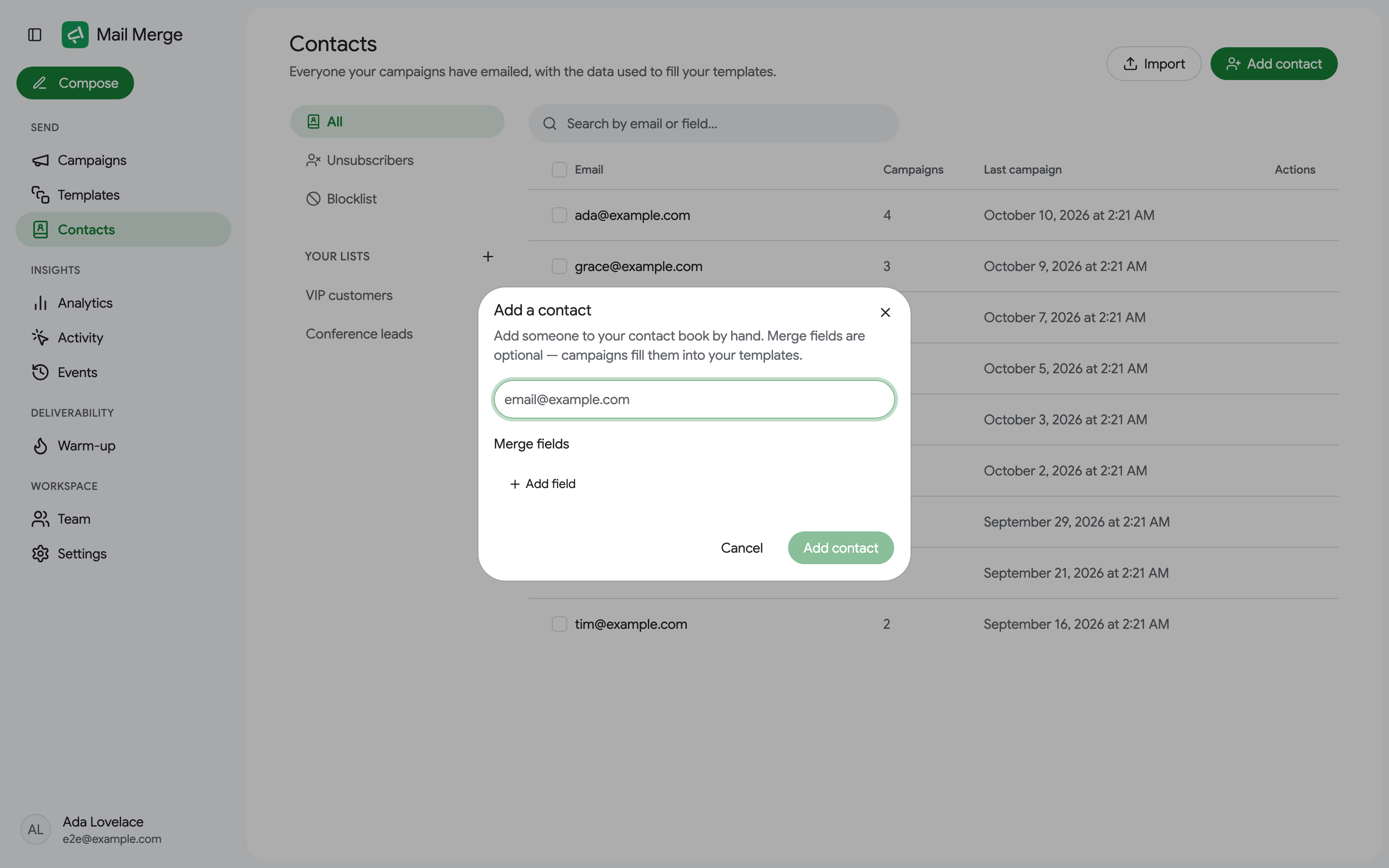
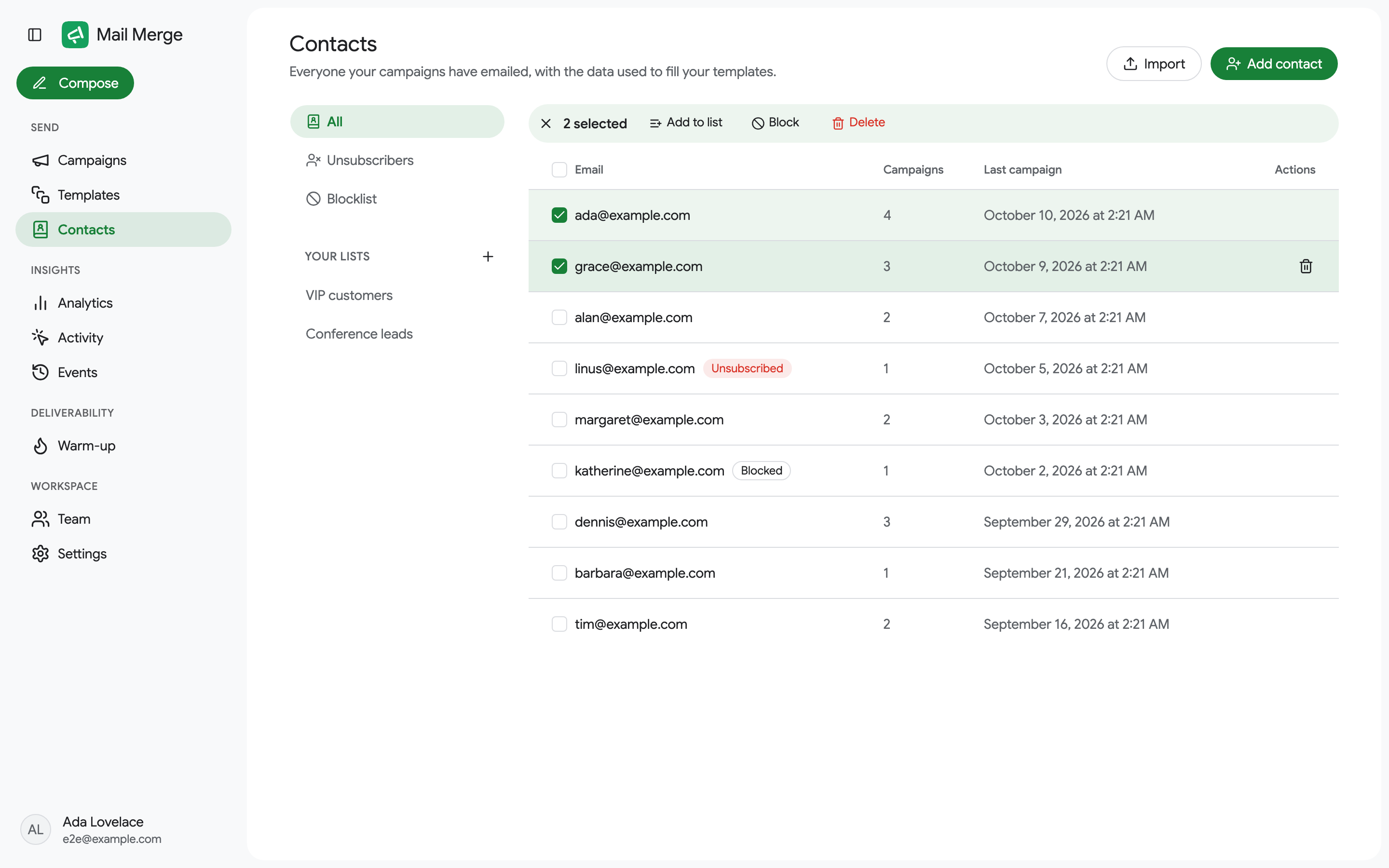
Section titled “Selecting contacts and bulk actions”Tick the checkboxes (or Select all) to act on several contacts at once. A toolbar replaces the search box with:
- Add to list and, on a list tab, Remove from list.
- Block, or Unblock on the Blocklist tab.
- Delete, which removes the contacts from the book only; past campaigns are unaffected.
Blocking, unblocking, adding to a list and removing from a list can be undone from the confirmation toast.
Contact lists
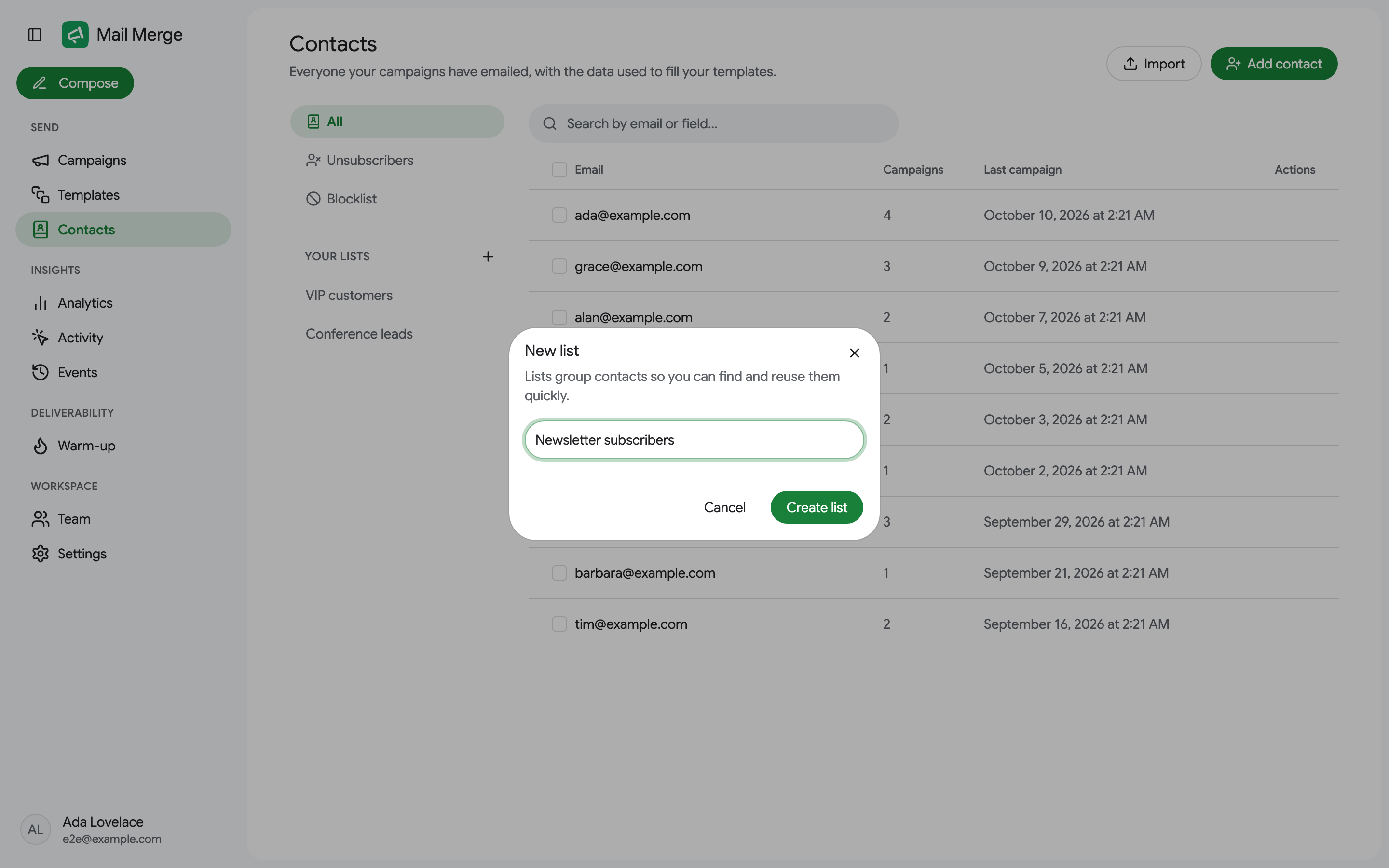
Section titled “Contact lists”Lists group contacts so you can reuse them quickly, for example VIP customers or Conference leads. Create one with the + next to Your lists, give it a name, then add contacts to it from the selection toolbar. In the campaign builder, lists appear as filters of the Contact book source.
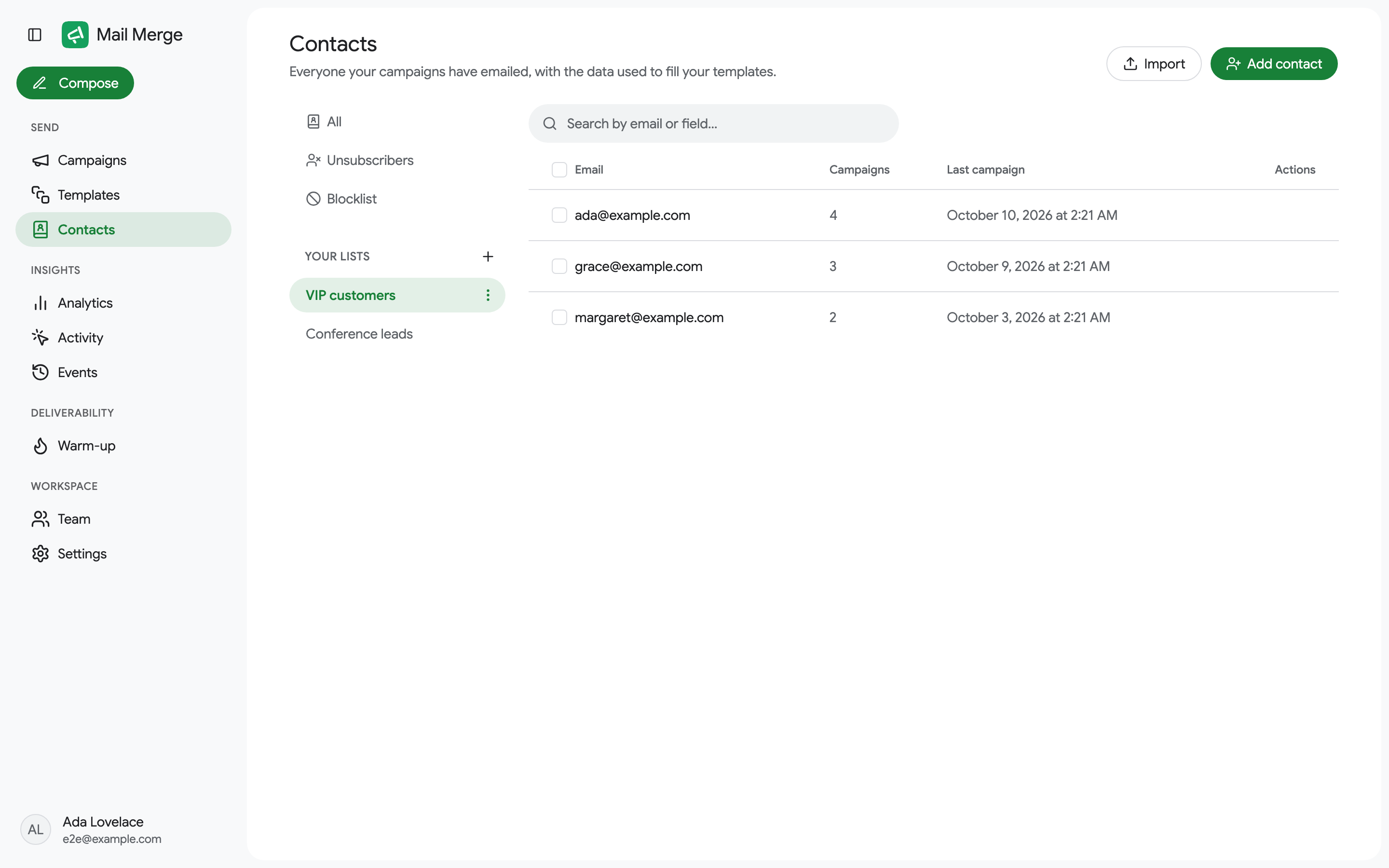
The ⋮ menu next to a list renames or deletes it. Deleting a list keeps the contacts in your book.
On the Free plan you can have 1 contact list; the Personal and Professional plans have no limit. A list you already have is never removed, and the + shows an upgrade prompt at the cap until you delete the list or upgrade. See Pricing & subscription.
Find new contacts
Section titled “Find new contacts”When the people you want to reach are not in your book yet, Find new contacts on the Contacts page (and Find new contacts inside the campaign builder’s Select recipients dialog) buys verified work email addresses from a B2B database and saves them as a new contact list. It is available on every plan, including Free, and a bought list does not count against the Free plan’s one-list cap.
- Describe the audience with any of four filters: job titles, locations, company domains and keywords. Each field takes several values; press Enter or + after each one.
- Read the count. It updates while you type, is free and needs no payment method. It shows how many people match and, below, how many of them have a work email on record, which is what you can buy. A company may have hundreds of people in the database and only a few dozen with an email.
- Set a campaign budget, from $1 up to what buys everyone who matches (2,000 contacts per order at most). Every contact costs $0.09, so the dialog tells you roughly how many contacts the budget buys.
- Buy. The exact amount is shown in the payment form before you pay, because the order is built from the people with an email only. If fewer exist than the budget could buy, the order shrinks and so does the charge: the budget is a ceiling, never a prepayment.
The list is ready within a few minutes and the dialog shows the progress. Each contact comes with first and last name, title, seniority, company, company domain and website, industry, company size, city, country, a LinkedIn profile and the email verification status, all usable as merge tags. The list is named after your filters and the date and appears under Your lists; when you started from the campaign builder, it is selected as the recipients as soon as it is ready.
The account balance
Section titled “The account balance”The wallet badge in the dialog’s header shows your account balance in US dollars. An order spends the balance first and charges your card only for the rest; a balance that covers the whole order needs no payment form at all. Top it up from the badge, from $5 to $500 at a time, to buy several small lists without re-entering a card.
The balance is store credit for contact orders only: it does not pay for a subscription, is not transferred between accounts and is not paid back to a card.
Refunds and credits
Section titled “Refunds and credits”A purchased list is delivered to your account at once, so a completed purchase is not refundable. What is refunded automatically, to the balance, is the fee for every contact the provider could not resolve after payment, so you pay for the contacts you receive. See Cancel your subscription & refunds and section 22 of the Terms of Service.
What you agree to
Section titled “What you agree to”A bought list is a cold list. The Terms ask three things: use it only for lawful business-to-business communication, keep the unsubscribe link in every email and honour every request to stop, and never resell or share the contacts outside your account. The data comes from a third-party provider; Mail Merge does not warrant that a person still holds the title the record shows, and the verification status on each contact tells you how confident the provider is about the address. A narrow audience and a relevant email keep complaint rates low; see Deliverability.
Blocklist
Section titled “Blocklist”Block a contact to keep it out of every future campaign, whatever source the campaign comes from: the row in your sheet is marked Unsubscribed with a note, and the email is not sent. Unblock from the Blocklist tab.
AI segments
Section titled “AI segments”Mail Merge classifies every contact in the background by industry (IT and software, education, marketing agency, finance, healthcare, and so on) and role (founder or executive, manager, engineer, sales and marketing, HR…), from the address and the merge fields you already hold for that contact. Nothing leaves your account: the classifier only sees your own contact’s address and columns, and the result is stored on that contact alone.
On the Professional plan the industry shows as a badge next to each contact, the Industry filter above the list narrows the table to one segment, and the same filter appears in the campaign builder’s contact picker, so “everyone in IT” is one click. The industry and role also become {{Industry}} and {{Role}} merge tags when you start a campaign from your contacts. On other plans the contacts page shows how many industries your book spans and invites you to upgrade to see who is in which.
New and updated contacts are classified within a few minutes of being added; a large import takes a little longer. A Professional account can also select contacts and choose Re-run AI segmentation to classify them again.